Standalone editors
The standalone pattern is the simplest way to use the editors. It is intended for editing a single value. The editor makes no assumptions about where the value comes from or where it goes. The editor reads the current value from a Supplier and passes each new value to a handler, which saves it. Each editor is created by a factory method of the Sections class.
Standalone editors require an SWT Composite, the parent widget that hosts the editor UI. The parent Composite is passed to the builder with the .parent(parent) method.
|
Add these bundles to Require-Bundle in the MANIFEST.MF of your plug-in:
com.amalgamasimulation.desktop.ui.editor
com.amalgamasimulation.desktop.binding
org.eclipse.core.databinding.observable
org.eclipse.swt
1. How an editor works
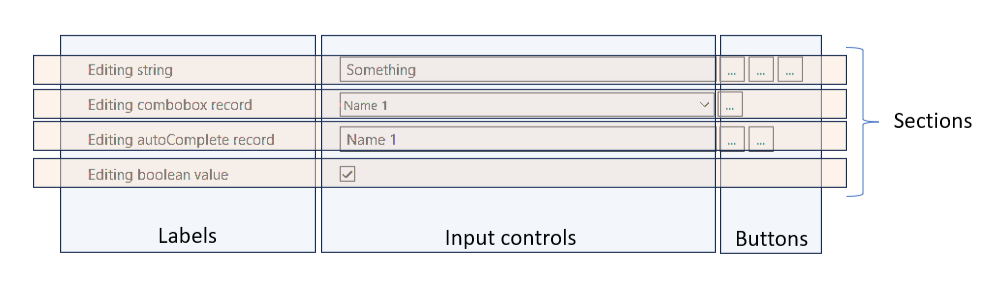
Every editor except CustomSectionBuilder follows the same layout: a label, an input control (text field, combobox, autocomplete or checkbox), and any number of optional buttons. In this library, the label, the input control, and the buttons together are called a section.
To add an editor:
-
Call one of the factory methods of the
Sectionsclass:stringEditor(),integerEditor(),doubleEditor(),comboBoxEditor()and others. Each method accepts a Supplier for the current value and returns a builder. -
Configure the editor step by step using the returned builder: set the parent
Composite, the label, the validation strategy, and the value changed handler; optionally, add buttons and tooltips or set other properties. -
Call
.create()to build and display the editor.
The section handles the value as follows:
-
When the section is created, it calls the value supplier and displays the value.
-
When the user presses
Enteror the field loses focus, the editor validates the input. -
If the value is invalid, the editor shows an error icon, does not call the value changed handler, and restores the current value.
-
If the value is valid but unchanged, the handler is not called.
-
If the value is valid and different, the handler is called with the new value.
1.1. Refreshing an editor
A section does not track changes to your data. When your code changes a value or a condition that affects visible() or enabled(), refresh the section:
| Method | When to call |
|---|---|
|
The value or the label text has changed. Also refreshes visibility, the enabled state and the buttons. |
|
Only the condition passed to |
|
Only the condition passed to |
create() returns the section; store it in a field to refresh it later. In the following example, the total row displays a computed value and is refreshed by the handler of the quantity field:
ICustomSection totalSection;

Sections
	.integerEditor(() -> quantity)
	.parent(parent)
	.label("Quantity")
	.validationStrategy(ValidationStrategies.integerPositive())
	.handler(newValue -> { quantity = newValue; totalSection.updateSection(); })
	.create();

totalSection = Sections
	.customSectionBuilder(parent)
	.addLabel(LabelProperties.label().text("Total"))
	.addLabel(LabelProperties.label().text(() -> Formats.getDefaultFormats().customDecimals(total(), 2)).font(boldFont)) // the text is a supplier
	.createSection();
1.2. Validation strategies
Validation strategies are created by the static methods of the ValidationStrategies class. The table lists the strategies accepted by the validationStrategy() step of the editors:
| Strategy | Accepts |
|---|---|
|
any number. Without |
|
values above zero |
|
zero and positive values |
|
values from |
|
values from 1 |
|
values from |
|
values between |
|
values whose absolute value is at least |
|
any number, shown in exponential notation, for example |
|
percentages from 0 to 100, above 0 up to 100, or from |
|
any whole number within the |
|
whole numbers above zero; zero and above |
|
whole numbers from |
|
a string with at least one non-whitespace character |
|
any string, including an empty one |
2. Editors
Each editor’s configuration chain starts with a factory method on the Sections class that accepts a Supplier for the current value. The table lists the required steps and settings of each editor:
| Editor | Required steps | Input settings | Common settings |
|---|---|---|---|
|
|||
|
|
||
|
|
||
|
|||
|
|||
|
|
2.1. Text-based editors
Text-based editors are the basis of most data entry forms. They edit any data that can be represented as a string, from plain text to numbers and formatted values. The editors support many specialized data types; String, Double and Integer are used most often and cover most everyday editing scenarios.
2.1.1. Double editor
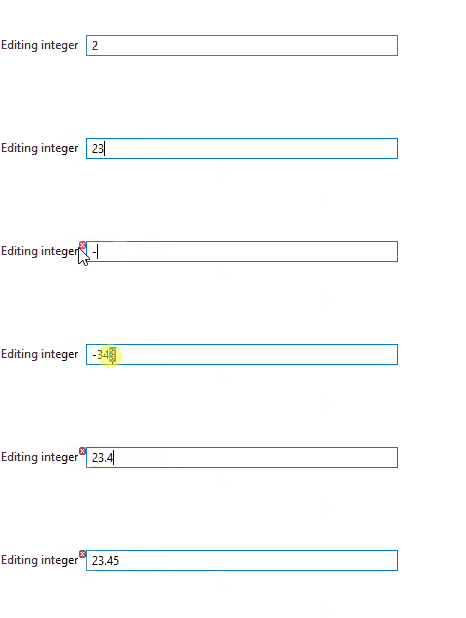
A double editor that accepts any numeric value:
Sections
	.doubleEditor(() -> doubleValue)
	.parent(parent)
	.label("Editing double")
	.validationStrategy(ValidationStrategies.doubleAny())
	.handler(newValue -> doubleValue = newValue)
	.create();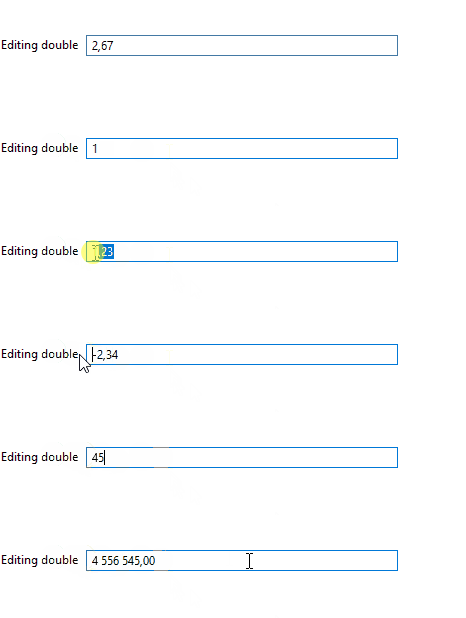
2.2. ComboBox editor
The combobox editor selects a value from a drop-down list:
Sections
	.comboBoxEditor(() -> comboboxRecord)
	.parent(parent)
	.label("Editing combobox record")
	.elements(records)
	.format(ComboboxRecord::getName)
	.handler(newValue -> comboboxRecord = newValue)
	.create();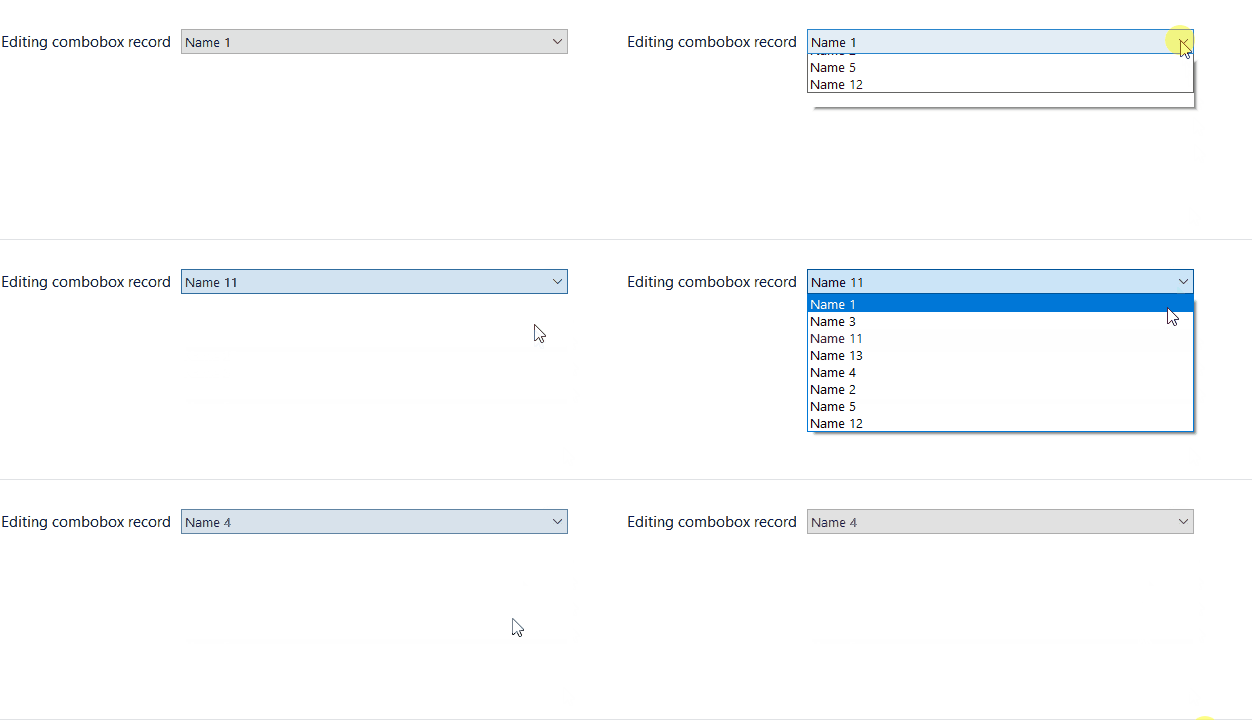
2.2.1. ComboBox settings
In addition to the basic configuration, the combobox editor provides methods that control which options are shown and how they behave:
-
.filter()– limits the size of the drop-down list -
.comparator()– sets the order of elements in the drop-down list -
.canBeNull()– changes the validation policy of the editor value to allownull
Sections
	.comboBoxEditor(() -> comboboxRecord)
	.parent(parent)
	.label("Editing combobox record")
	.elements(records)
	.format(ComboboxRecord::getName)
	.handler(newValue -> comboboxRecord = newValue)
	.canBeNull(() -> canBeNull)
	.filter(filter)
	.comparator(comparator)
	.addButton(Buttons.clear())
	.create();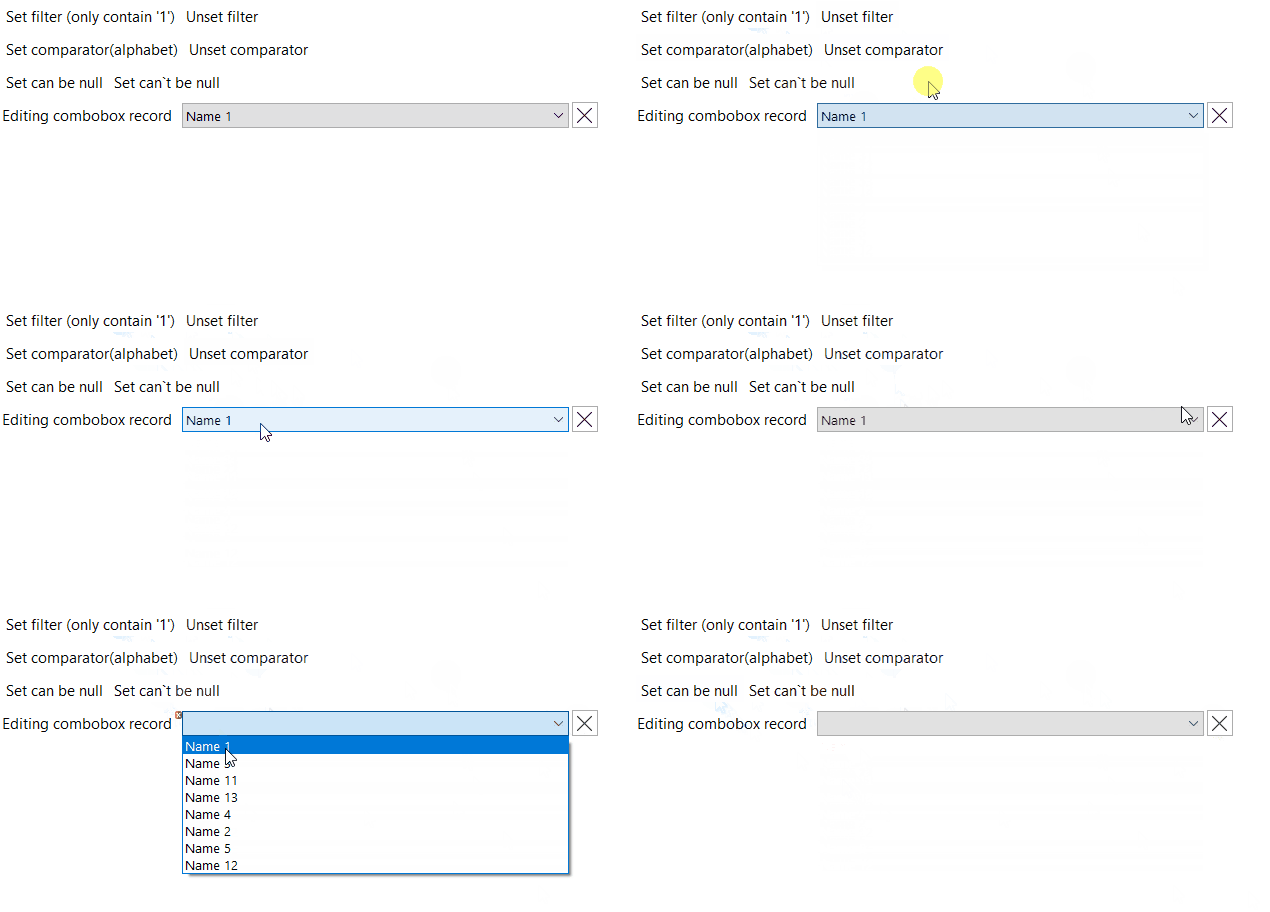
2.3. Autocomplete editor
The autocomplete editor is intended for large lists in which a regular combobox is hard to use.
How it works:
Type text and press Ctrl+Space to display matching suggestions. Navigate with the arrow keys or the mouse and select a value to insert it.
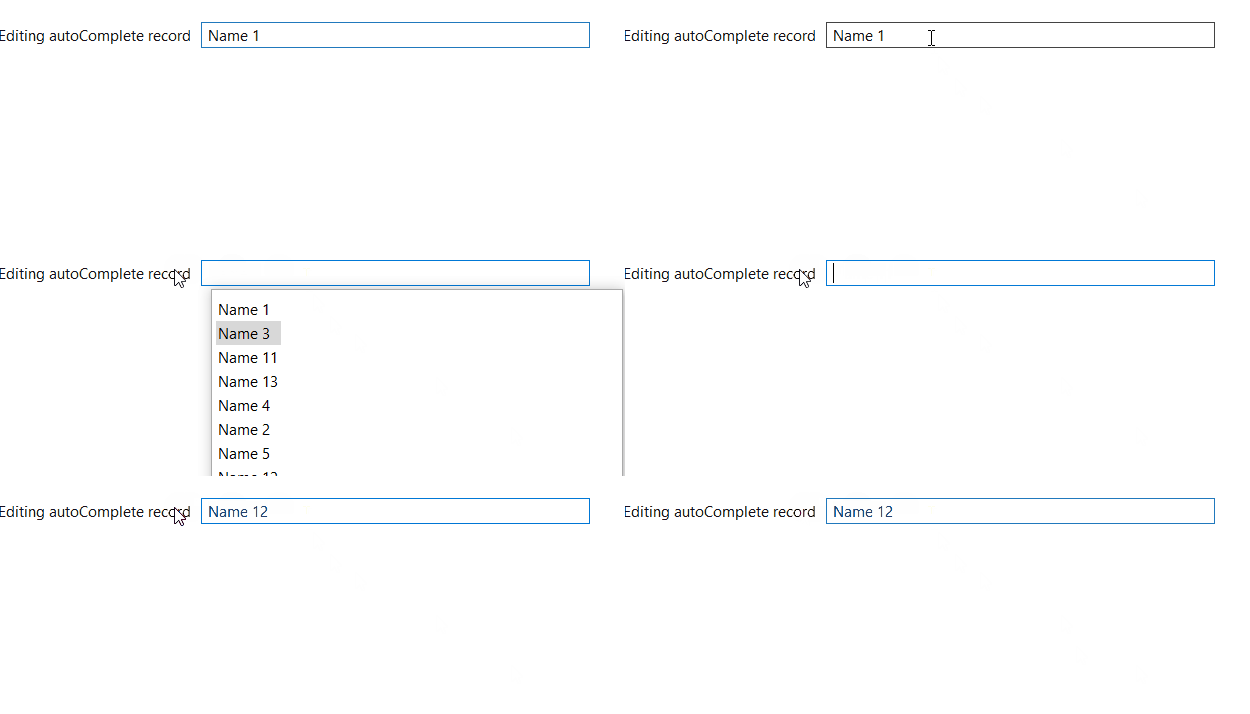
Sections
	.autoCompleteEditor(() -> autoCompleteRecord)
	.parent(parent)
	.label("Editing autoComplete record")
	.elements(records)
	.format(ComboboxRecord::getName)
	.handler(newValue -> autoCompleteRecord = newValue)
	.create();
The autocomplete editor supports the same filtering, sorting, and optional selection settings as the combobox editor.
2.4. Enum editor
The enum editor is a specialized combobox for Java enumerations.
Sections.enumEditor(() -> dayOfWeek)
	.parent(parent)
	.label("Editing Day of week")
	.elements(DayOfWeek.values())
	.format(DayOfWeek::name)
	.handler(newValue -> dayOfWeek = newValue)
	.create();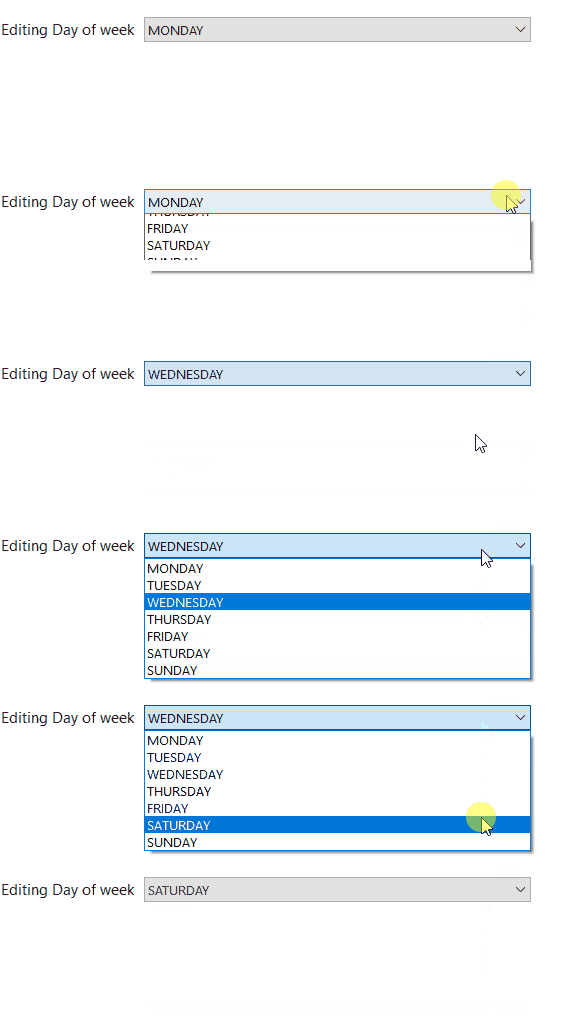
2.5. CheckBox editor
The checkbox editor provides a checkbox for editing boolean (true/false) values.
Sections.checkBoxEditor(() -> booleanValue)
	.parent(parent)
	.label("Editing boolean value")
	.handler(newValue -> booleanValue = newValue)
	.create();
2.6. LocalDateTime editor
The LocalDateTime editor consists of a text field with built-in validation and a calendar button for selecting a date and time. A value can be typed in the text field in the preset format or selected in a dialog opened by the calendar button. The editor parses, formats and validates values according to the current locale.
Sections.localDateTimeEditor(() -> localDateTimeValue)
	.parent(parent)
	.label("Editing local date time")
	.handler(newValue -> localDateTimeValue = newValue)
	.create();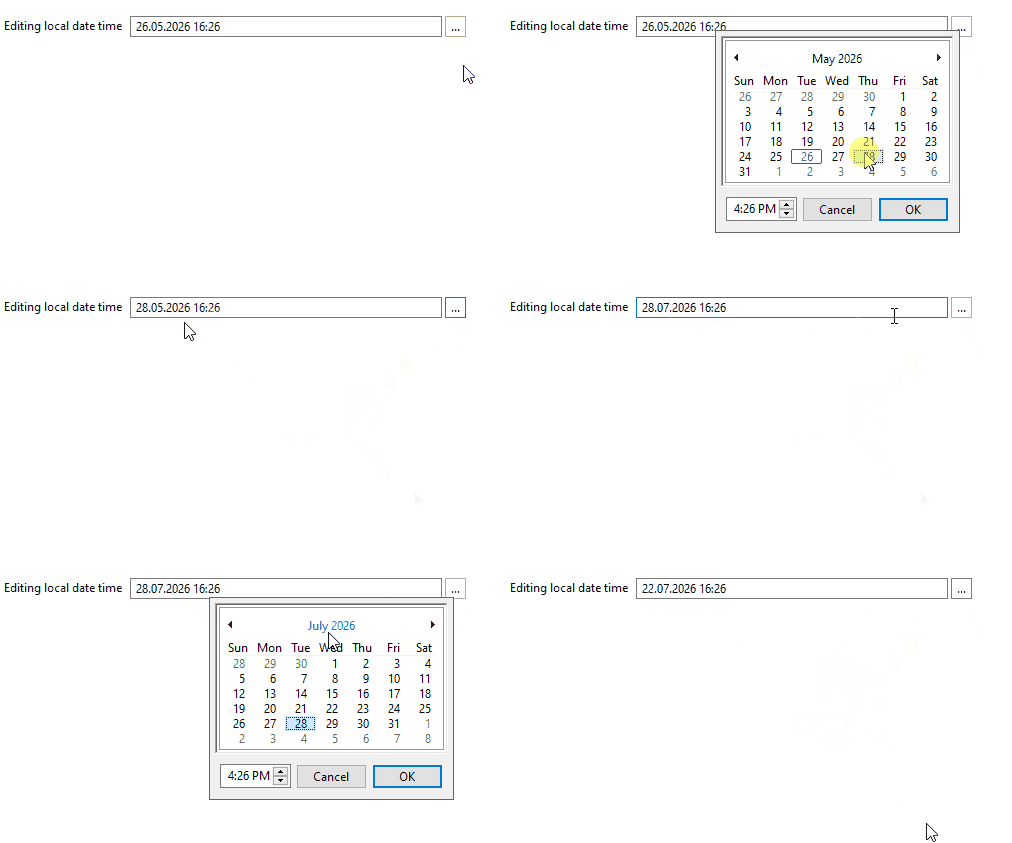
The default validation strategy is ValidationStrategies.localDateTime(), or ValidationStrategies.localDate() after date().
Additional settings of localDateTimeEditor():
-
.date()– switches the editor to date-only selection. The time is hidden and ignored: when a date is selected, hours, minutes, seconds and milliseconds are set to zero.
-
.withoutDefaultButton()– removes the calendar button that the editor adds by default -
.newLocalDateTime()– sets the date and time preselected when the calendar dialog opens. ThisSupplieris used only when the current editor value isnull; otherwise the dialog shows the current value.
-
.canBeNull()– changes the validation policy of the editor value to allownull
-
.validationStrategy()– replaces the default validation strategy
2.7. LocalTime editor
The LocalTime editor consists of a text field with built-in validation and a time button for selecting a time. A value can be typed in the text field in the preset format or selected in a dialog opened by the time button. The editor parses, formats and validates values according to the current locale.
Sections.localTimeEditor(() -> localDateValue)
	.parent(parent)
	.label("Editing local time")
	.handler(newValue -> localDateValue = newValue)
	.create();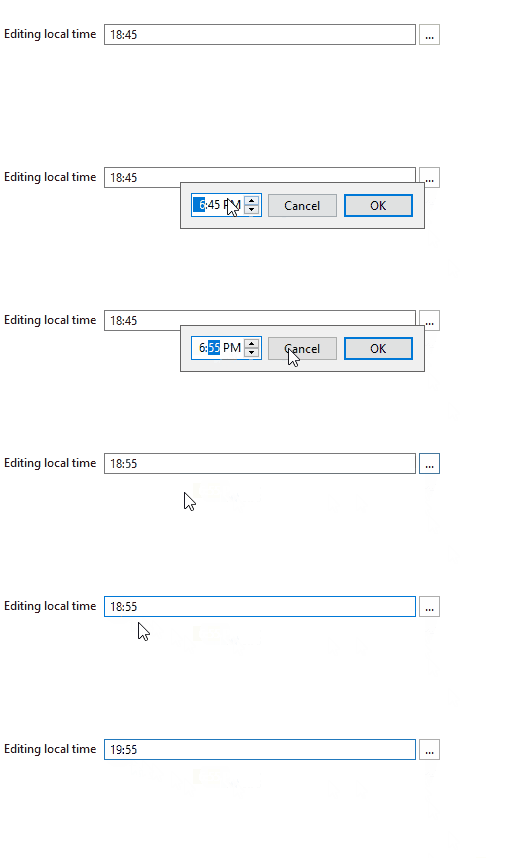
The default validation strategy is ValidationStrategies.localTime().
Additional settings of localTimeEditor():
-
.newLocalTime()– sets the time preselected when the time dialog opens. ThisSupplieris used only when the current editor value isnull; otherwise the dialog shows the current value.
2.8. Color editor
The Color editor consists of a text field that displays a color value and a color button. The color is selected in a dialog opened by this button. The text field is read-only, so the value can be changed only in the color dialog.
Sections.colorEditor(() -> colorValue)
	.parent(parent)
	.label("Editing color value")
	.handler(newValue -> colorValue = newValue)
	.create();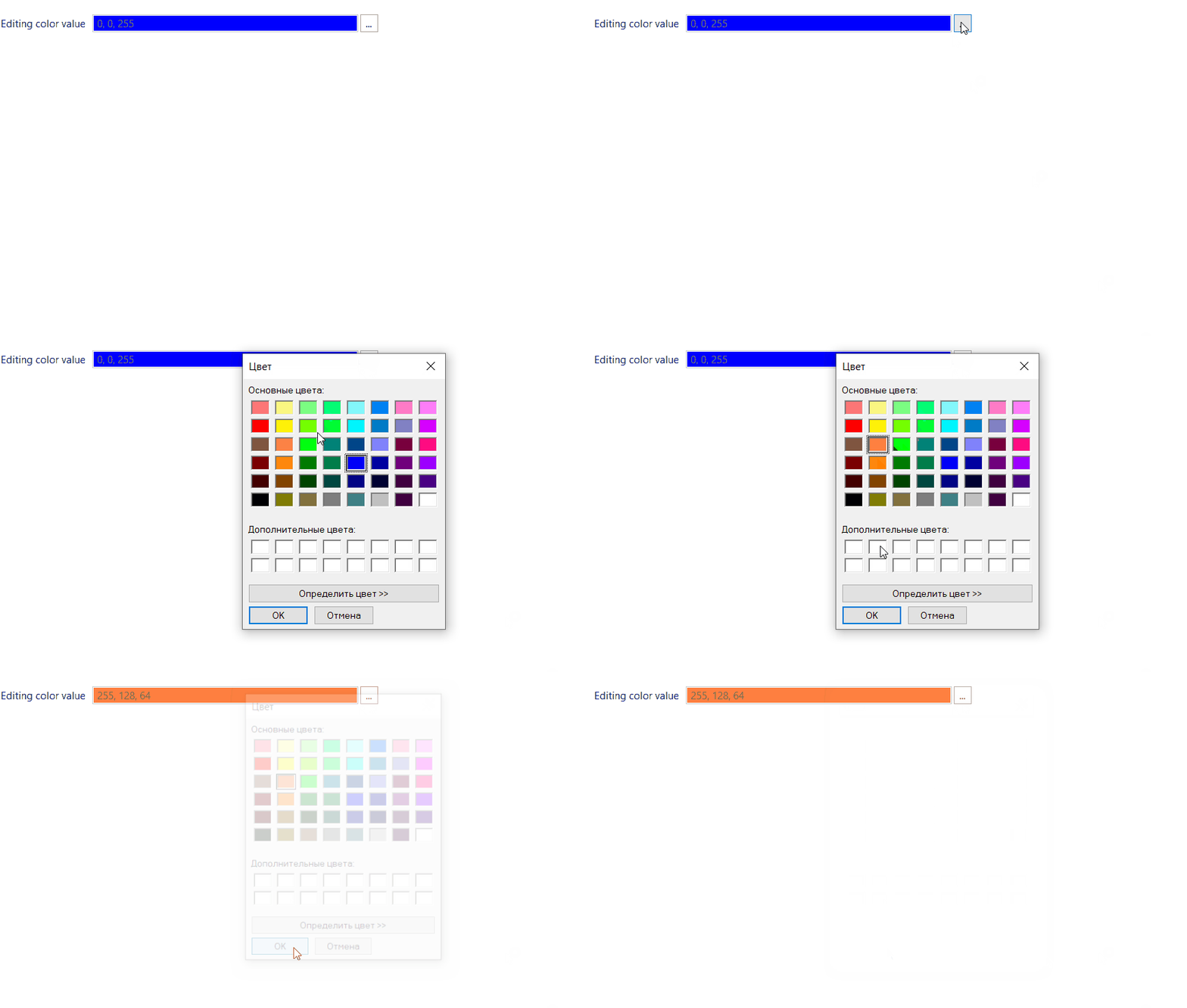
The default validation strategy is ValidationStrategies.colorAWT().
2.9. Real distribution editor
The RealDistribution editor consists of a text field that displays a statistical distribution (for example, "Normal(0, 1)" or "Uniform(0, 100)") and a distribution button for configuring distribution parameters. A value can be typed in the text field as a distribution expression or configured in a dialog with parameter controls opened by the distribution button.
Sections.realDistributionEditor(() -> realDistributionValue)
	.parent(parent)
	.label("Editing real distribution value")
	.handler(newValue -> realDistributionValue = newValue)
	.create();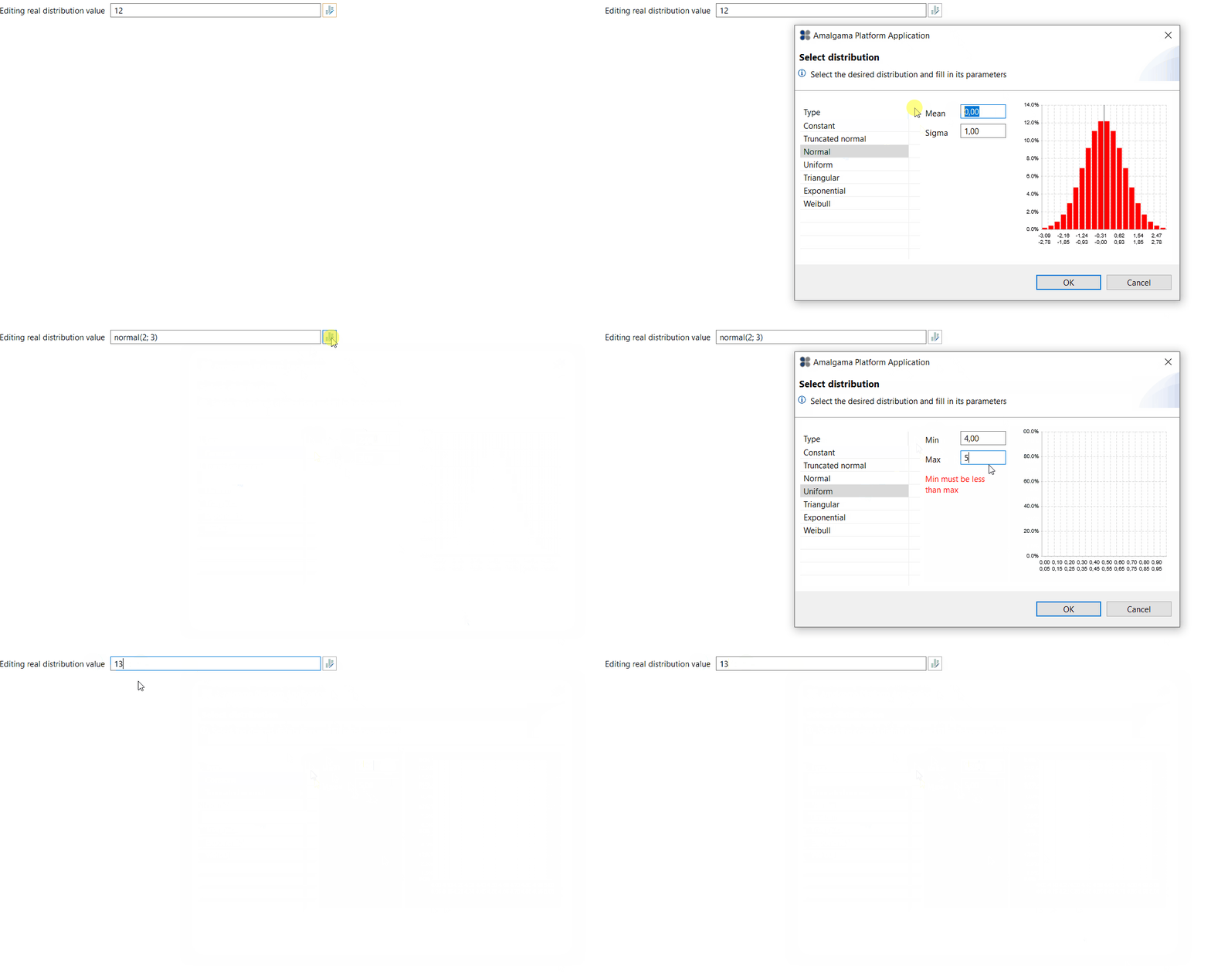
The default validation strategy is ValidationStrategies.realDistribution().
2.10. Time Series editor
The Amalgama Library class TimeSeries represents a finite or potentially infinite ordered sequence of discrete instants in calendar time. The timeSeriesEditor() method creates an editor for a field of this type:
Sections.timeSeriesEditor(() -> timeSeriesValue)
	.parent(parent)
	.label("Editing time series value")
	.handler(newValue -> timeSeriesValue = newValue)
	.create();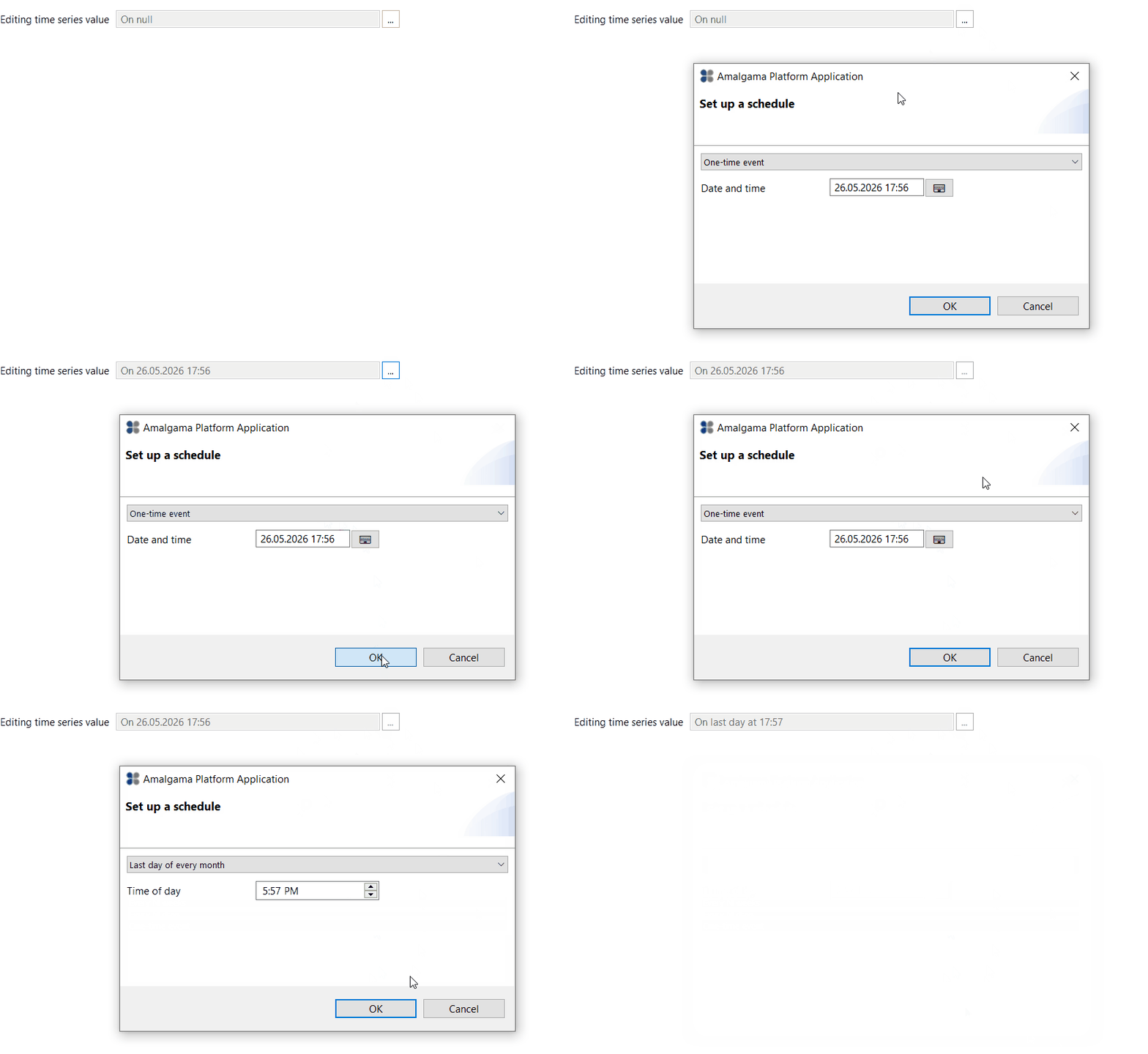
The default validation strategy is ValidationStrategies.timeSeries().
3. Fine-tuning
In addition to the basic configuration, every editor has methods that fine-tune the behavior and appearance of its section.
3.1. visible()
The visible() method shows or hides a section. Visibility is calculated by a BooleanSupplier.
Sections
	.doubleEditor(() -> doubleValue)
	.parent(parent)
	.label("Editing double")
	.validationStrategy(ValidationStrategies.doubleAny())
	.handler(newValue -> doubleValue = newValue)
	.visible(() -> editorVisibility)
	.create();
After the condition that affects visibility changes, call updateVisible() on the section to refresh its state.
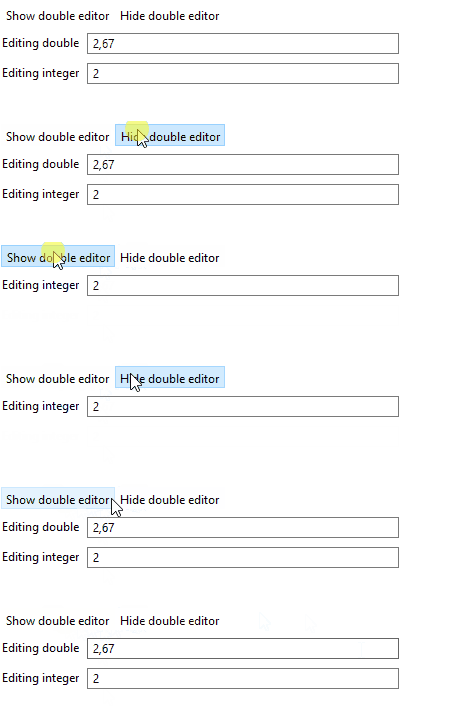
This setting applies to the entire section: the label, the input control and all attached buttons are hidden or shown.
3.2. enabled()
The enabled() method enables or disables a section. Whether the section is editable is calculated by a BooleanSupplier.
Sections
	.doubleEditor(() -> doubleValue)
	.parent(parent)
	.label("Editing double")
	.validationStrategy(ValidationStrategies.doubleAny())
	.handler(newValue -> doubleValue = newValue)
	.enabled(() -> isFormEditable)
	.create();
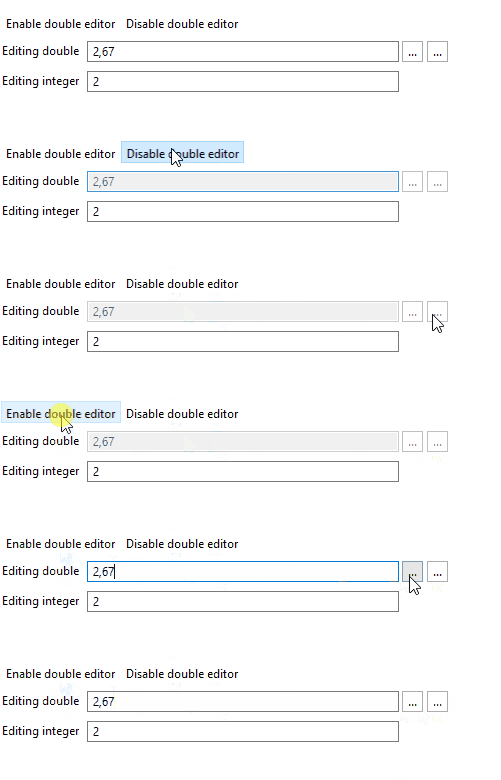
After the condition that affects the enabled state changes, call updateEnabled() on the section to refresh its state.
This setting applies to the input control and all attached buttons of the section; the label remains enabled.
3.3. toolTip()
A tooltip shows additional information when the user hovers over the label of a section. A tooltip can be added in two ways: as a plain string or with a fully customizable ToolTipProperties object.
3.3.1. Simple string tooltip
The simplest way to add a tooltip is to pass a string:
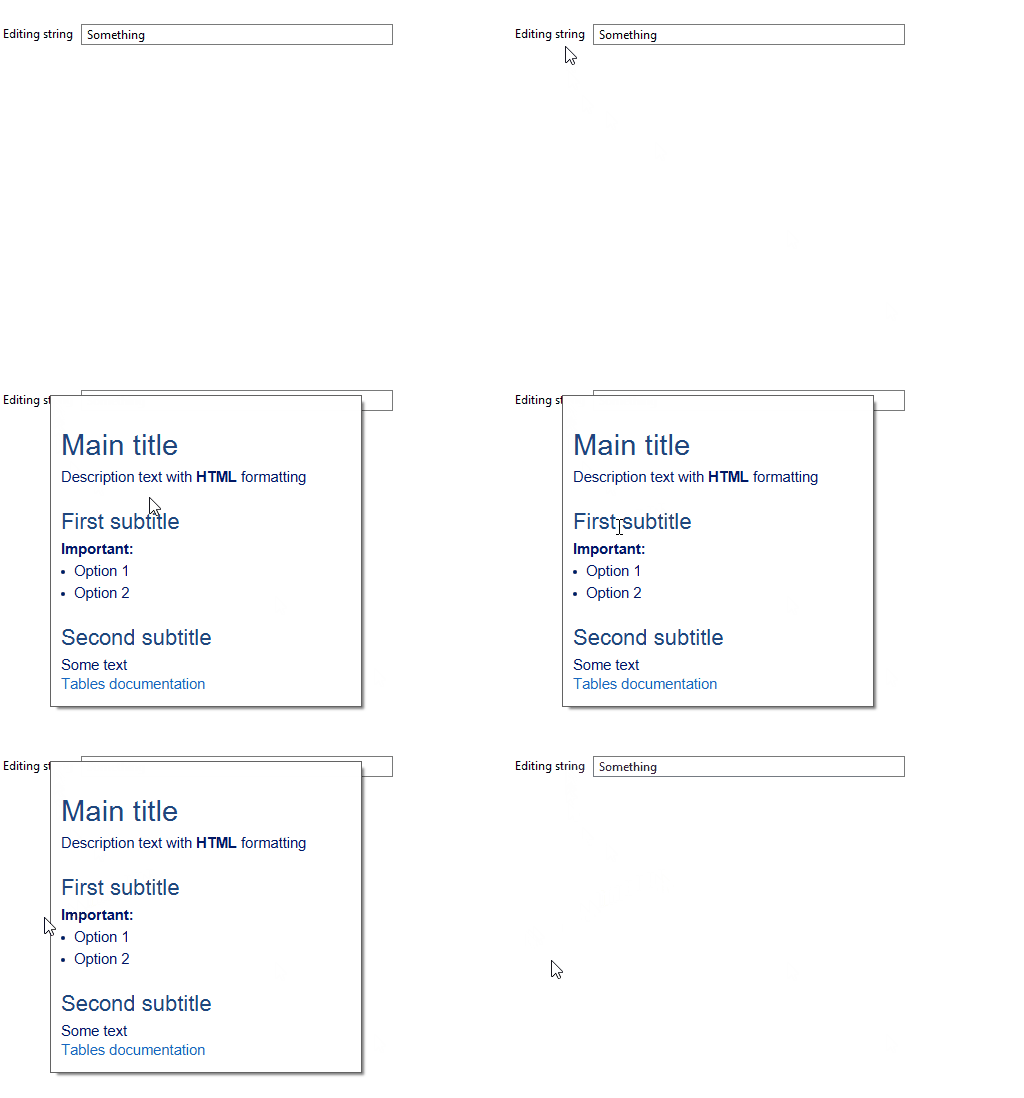
.toolTip("This is a simple tooltip message")By default, the tooltip is displayed as a standard SWT popup with plain text. The popup is drawn by the operating system, which recognizes basic HTML tags: <b> for bold text, <br> for line breaks, and <li> for bullet lists:
.toolTip("<b>Important:</b><br/><li>Option 1<br/><li>Option 2")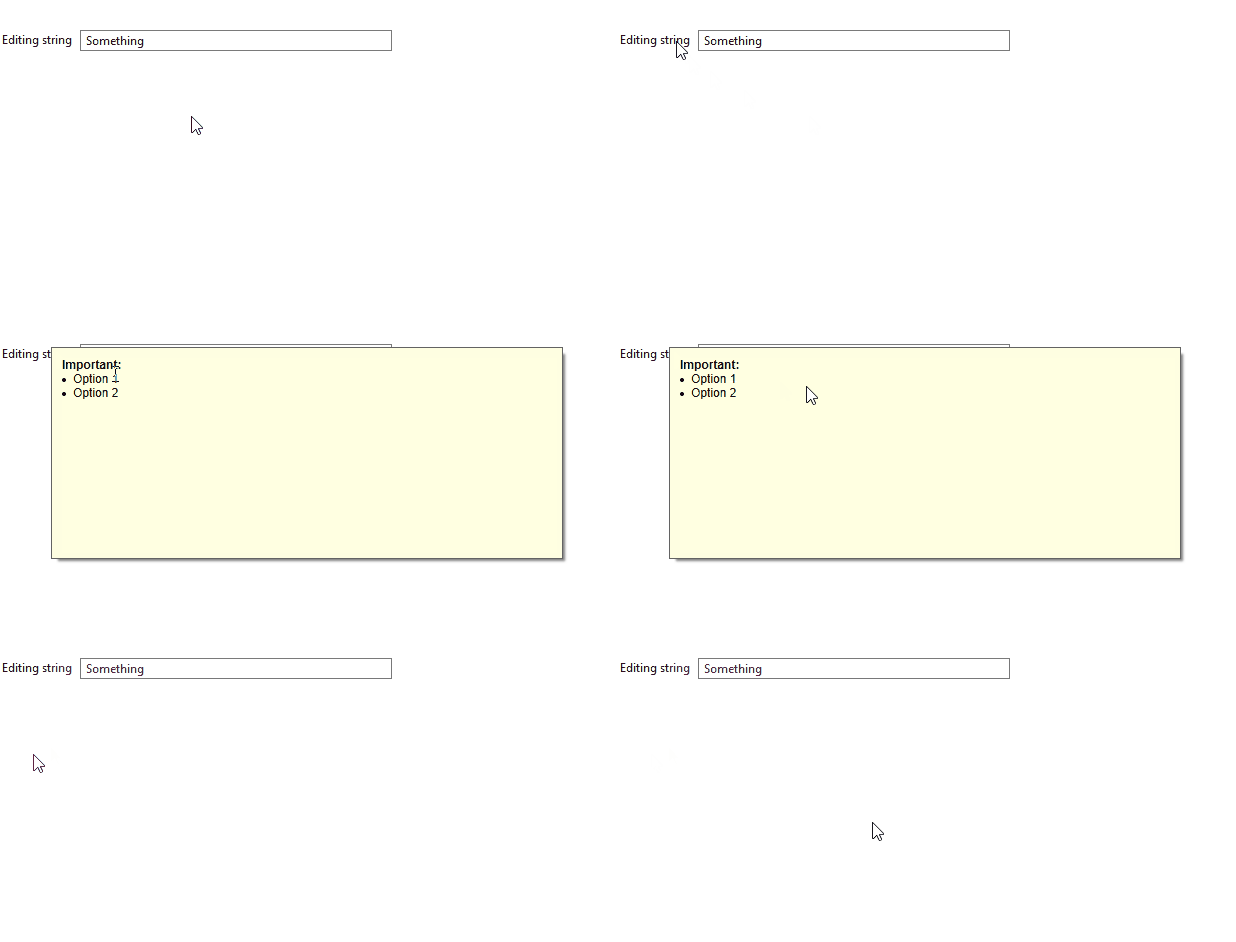
3.3.2. Rich tooltip with ToolTipProperties
For more control over the tooltip appearance, use the overload that accepts a ToolTipProperties object:
.toolTip(ToolTipProperties.newInstance()
	    .width(300)
	    .height(300)
	    .background(Color.WHITE)
	    .foreground(new Color(0, 25, 102))
	    .font(font1)
	    .fontWeight("lighter")
	    .lineHeight(1.5)
	    .elements(
	        HTML.header("Main title", 1),
	        HTML.textBlock("Description text with <b>HTML</b> formatting"),
	        HTML.header("First subtitle", 2),
	        HTML.textBlock("<b>Important:</b><br/><li>Option 1<br/><li>Option 2"),
	        HTML.header("Second subtitle", 2),
	        HTML.textBlock("Some text"),
	        HTML.linkOpenInBrowser("Tables documentation", "https://platform.amalgamasimulation.com/amalgama/DesktopUI/tables/intro.html")
		    )
		)
The content elements are created by the static methods of the HTML interface.
3.4. labelProperties()
The labelProperties() method customizes the appearance and behavior of the section label: colors, fonts, alignment, size and other visual attributes. It is used to highlight certain fields, match the application branding or create a custom visual hierarchy.
.labelProperties(LabelProperties.label()
        .foreground(Display.getDefault().getSystemColor(SWT.COLOR_DARK_RED))
        .background(Display.getDefault().getSystemColor(SWT.COLOR_INFO_BACKGROUND))
        .font(new Font(Display.getDefault(), "Arial", 15, SWT.BOLD))
        .height(50)
        .width(250)
        .style(SWT.BORDER | SWT.CENTER))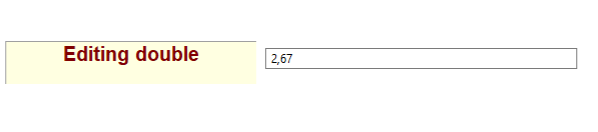
3.5. textProperties()
The textProperties() method customizes the appearance and behavior of the Text field of an editor:
.textProperties(TextProperties.newInstance()
    .width(300)
    .linesCount(4)
    .font(new Font(Display.getDefault(), "Arial", 13, SWT.NORMAL))
    .enabled(() -> false))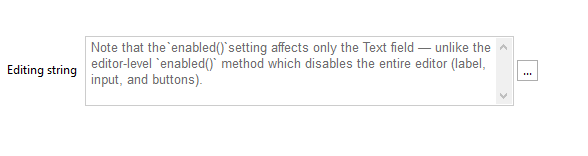
When linesCount is greater than 1, the Text field adds the SWT.MULTI, SWT.V_SCROLL and SWT.WRAP styles and becomes a multi-line text area.
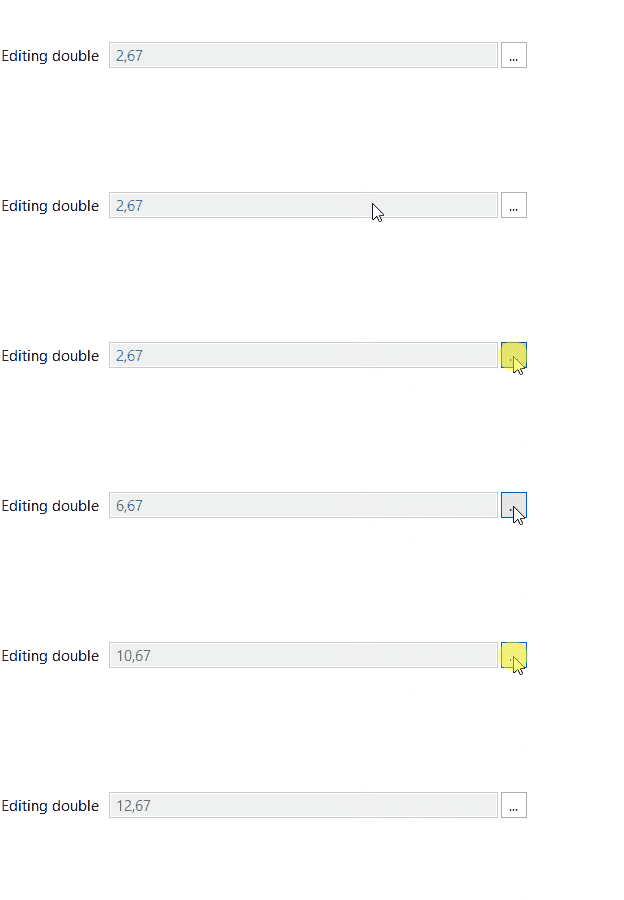
The enabled() setting of TextProperties applies only to the Text control; the label and the attached buttons are not affected. To disable the input control together with the buttons, use the enabled() method of the section. This prevents the user from typing in the text field, while the value can still be edited with the attached buttons, which remain enabled.
3.6. comboBoxProperties()
The comboBoxProperties() method customizes the appearance and behavior of a ComboBox field:
.comboBoxProperties(ComboBoxProperties.newInstance()
    .width(500)
    .font(new Font(Display.getDefault(), "Arial", 10, SWT.ITALIC))
    .enabled(() -> true)))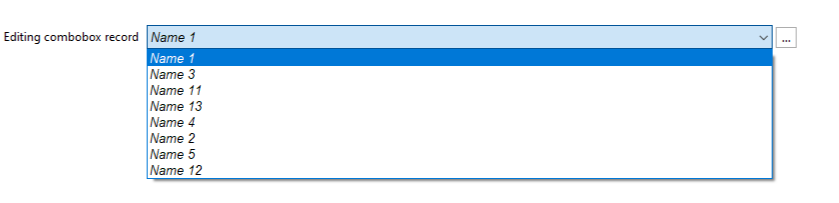
The enabled() setting of ComboBoxProperties applies only to the combobox control; the label and the attached buttons are not affected. To disable the input control together with the buttons, use the enabled() method of the section.
4. Buttons
Buttons are added to a section with the addButton() method. The method can be called multiple times to add any number of buttons. Buttons are placed next to the input control in the order in which they are added.
4.1. Predefined Buttons
The Buttons class provides ready-made buttons with predefined behavior:
clear() – clears the current value (sets it to null). Applies to the String, Color, LocalDateTime, LocalTime, RealDistribution, TimeSeries, combobox, autocomplete and enum editors.
refresh() – refreshes the content: reads the value from the Supplier and sets it as the current value of the editor. Applies to sections of any type.
color() – opens a color dialog. Applies only to Color sections.
localDateTime() – opens a calendar/time dialog. Applies only to LocalDateTime sections.
localTime() – opens a time dialog. Applies only to LocalTime sections.
openFile() – opens a file selection dialog. Applies only to a String section that receives the path to the selected file.
saveFile() – opens a file save dialog. Applies only to a String section.
openDirectory() – opens a directory selection dialog. Applies only to String sections.
realDistribution() – opens a real distribution editor dialog. Applies only to RealDistribution sections.
timeSeries() – opens a time series editor dialog. Applies only to TimeSeries sections.
4.2. Buttons with your own action
In standalone sections, custom buttons are created with Buttons.simpleButton(). The click action is defined by the action() method, which receives the SWT event and the current value of the section.
Sections
	.doubleEditor(() -> doubleValue)
	.parent(parent)
	.label("Editing double")
	.validationStrategy(ValidationStrategies.doubleAny())
	.handler(newValue -> doubleValue = newValue)
	.addButton(Buttons.<Double>simpleButton()
			.action((event, value) -> {
				MessageBox messageBox = new MessageBox(parent.getShell(), SWT.ICON_INFORMATION);
				messageBox.setMessage("Current value = "+ value);
				messageBox.open();
			}))
	.create();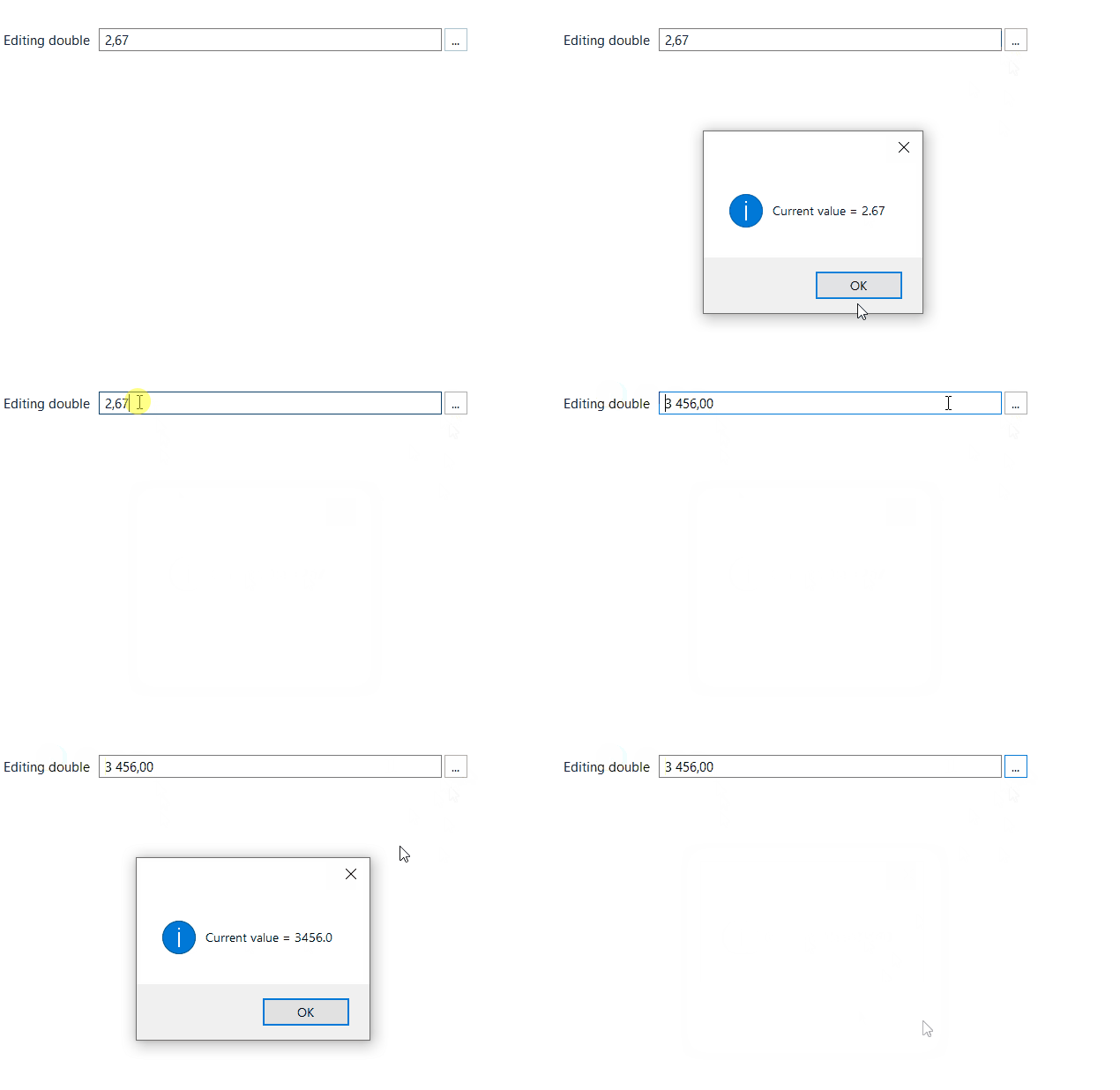
4.3. Common Button Settings
All buttons support the following settings:
text(String) – sets the button text
icon(Image) – sets the button icon (replaces the text, if any)
width(int) / height(int) – set the button size in pixels
toolTip(String) – adds a tooltip shown on hover
enabled(boolean) / enabled(BooleanSupplier) – defines whether the button is enabled. After the condition changes, call updateSection() on the section to refresh its state.
visible(boolean) / visible(BooleanSupplier) – defines whether the button is shown. After the condition changes, call updateSection() on the section to refresh its state.
Sections
	.doubleEditor(() -> doubleValue)
	.parent(parent)
	.label("Editing double")
	.validationStrategy(ValidationStrategies.doubleAny())
	.handler(newValue -> doubleValue = newValue)
	.addButton(Buttons.<Double>simpleButton()
			.text("Custom text")
			.toolTip("Custom tooltip")
			.height(50)
			.width(150)
			.visible(() -> customSimpleBtnVisibility)
			.enabled(() -> customSimpleBtnEnabled)
			.action((event, value) -> {
				MessageBox messageBox = new MessageBox(parent.getShell(), SWT.ICON_INFORMATION);
				messageBox.setMessage("Current value = "+ value);
				messageBox.open();
			}))
	.addButton(Buttons.simpleButton())
	.create();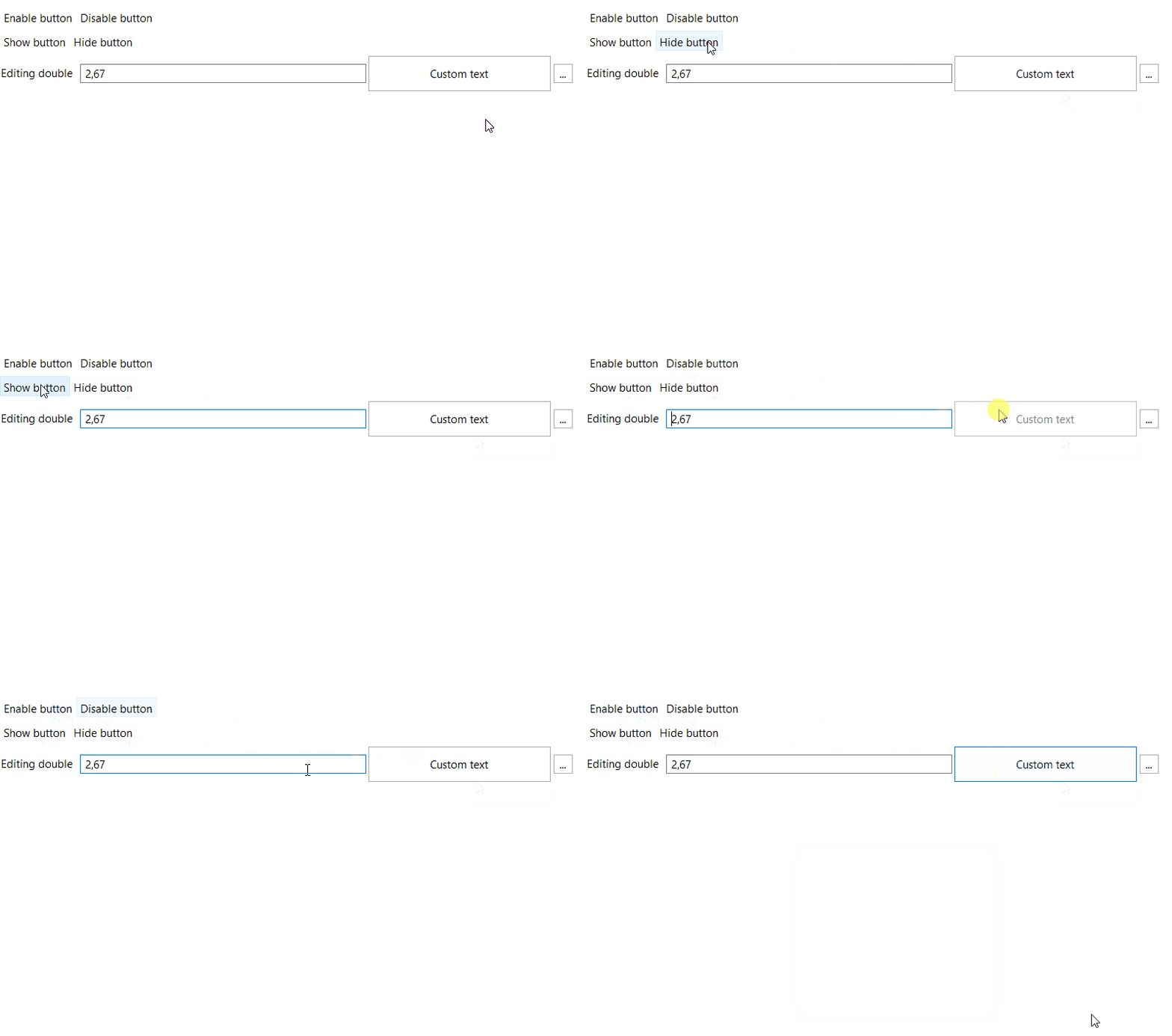
5. SectionGroup
SectionGroup is a Composite that aligns the labels of the sections created in it, so their input fields start at the same position. By default all labels get the width of the longest one.
SectionGroup group = new SectionGroup(parent, SWT.NONE); // use instead of a plain Composite

Sections
	.stringEditor(() -> name)
	.parent(group) // the section is aligned with the other sections of the group
	.label("Name")
	.validationStrategy(ValidationStrategies.stringIsNotEmpty())
	.handler(newValue -> name = newValue)
	.create();

Sections
	.doubleEditor(() -> capacity)
	.parent(group)
	.label("Capacity")
	.validationStrategy(ValidationStrategies.doublePositive())
	.handler(newValue -> capacity = newValue)
	.create();

Sections
	.integerEditor(() -> maxTripsPerDay)
	.parent(group)
	.label("Maximum number of trips per day")
	.validationStrategy(ValidationStrategies.integerPositive())
	.handler(newValue -> maxTripsPerDay = newValue)
	.create();
Without a group:

In a SectionGroup:

To set the same fixed width in pixels for all labels, call labelWidth(int), for example group.labelWidth(250). labelWidth(-1) restores alignment by the longest label. The method can be called at any time, also after the form is shown: the labels of the existing sections are resized.
The group aligns text editors, comboboxes, checkbox editors and custom sections whose first element is a label. A width set with labelProperties() overrides the group width.
The group has a white background and uses GridData to fill its parent. To override these defaults, call setBackground() for the background or setLayoutData() for the layout data.
6. Custom section
customSectionBuilder() builds complex layouts that combine multiple editors, labels, and buttons. Unlike standard editor sections, which follow a fixed template, (label, input control, buttons), customSectionBuilder() gives you full control over the arrangement of UI elements.
To add a custom section:
-
Call
customSectionBuilder(). It returns a builder for adding labels, buttons and nested input controls. -
Add editors (input controls only) with the
textEditor(),comboBoxEditor(),autoCompleteEditor(),enumEditor()orcheckBoxEditor()methods. Each method returns a builder for configuring the input control. After the configuration, call.create(): the editor is added to the section, and thecustomSectionBuilder()builder is returned so you can add more elements. -
Add labels and buttons with the
addLabel()andaddButton()methods. Any other content can be added to the row withaddComposite(). -
Call
.createSection()to build the custom section.
6.1. Example 1
The first example places five input controls and a button in one row. The button changes the values in code and refreshes all input controls of the row with a single updateSection() call.
String truckName = "Truck 1";
DayOfWeek shiftDay = DayOfWeek.MONDAY;
ComboboxRecord driver = records.get(0);
ComboboxRecord helper = null;
boolean truckActive = true;
ICustomSection truckSection;

...

truckSection = Sections
	.customSectionBuilder(parent)
	.addLabel(LabelProperties.label().text("Truck").width(40))
	.textEditor(() -> truckName)
		.validationStrategy(ValidationStrategies.stringIsNotEmpty())
		.handler(newValue -> truckName = newValue)
		.textProperties(TextProperties.newInstance().width(70))
		.create()
	.enumEditor(() -> shiftDay)
		.elements(DayOfWeek.values())
		.format(DayOfWeek::name)
		.handler(newValue -> shiftDay = newValue)
		.comboBoxProperties(ComboBoxProperties.newInstance().width(100))
		.create()
	.comboBoxEditor(() -> driver)
		.elements(records)
		.format(ComboboxRecord::getName)
		.handler(newValue -> driver = newValue)
		.comboBoxProperties(ComboBoxProperties.newInstance().width(80))
		.canBeNull(() -> true) // an empty value is allowed
		.filter(record -> record.getName().contains("1")) // only names with "1"
		.comparator(Comparator.comparing(ComboboxRecord::getName))
		.create()
	.autoCompleteEditor(() -> helper)
		.elements(records)
		.format(ComboboxRecord::getName)
		.handler(newValue -> helper = newValue)
		.textProperties(TextProperties.newInstance().width(70))
		.canBeNull(() -> true)
		.create()
	.checkBoxEditor(() -> truckActive)
		.handler(newValue -> truckActive = newValue)
		.checkBoxProperties(Buttons.checkBox().text("Active").width(60)) // the text is shown next to the checkbox
		.create()
	.addButton(Buttons.separateButton().text("Reset").width(50).handler(e -> {
		truckName = "Truck 1";
		shiftDay = DayOfWeek.MONDAY;
		driver = null;
		helper = null;
		truckActive = true;
		truckSection.updateSection(); // refreshes all input controls of the row
	}))
	.createSection();
6.2. Example 2
The second example changes a row while the program runs. The label text is read from a Supplier, and the second image follows the selected value. The checkboxes of the first row show or hide the second row and enable or disable it.
WritableValue<String> icon = new WritableValue<>("home", String.class);
Image homeImage = PlatformImages.getImage("icons/home.png", StandaloneEditorsTab.class);
Image propertiesImage = PlatformImages.getImage("icons/properties.png", StandaloneEditorsTab.class);
boolean detailsVisible = true;
boolean detailsEditable = true;
ICustomSection detailsSection;

...

Sections
	.customSectionBuilder(parent)
	.addLabel(LabelProperties.label().text("Details").skipAlignment(true)) // the label does not widen the label column of a SectionGroup
	.checkBoxEditor(() -> detailsVisible)
		.handler(newValue -> {
			detailsVisible = newValue;
			detailsSection.updateVisible();
		})
		.checkBoxProperties(Buttons.checkBox().text("Visible").width(70))
		.create()
	.checkBoxEditor(() -> detailsEditable)
		.handler(newValue -> {
			detailsEditable = newValue;
			detailsSection.updateEnabled();
		})
		.checkBoxProperties(Buttons.checkBox().text("Editable").width(70))
		.create()
	.createSection();

detailsSection = Sections
	.customSectionBuilder(parent)
	.addLabel(LabelProperties.label()
		.text(() -> "Icon: " + icon.getValue()) // the text is read again on every updateSection()
		.width(110) // the text changes, so the width is set for the longest one
		.foreground(Display.getDefault().getSystemColor(SWT.COLOR_DARK_BLUE))
		.toolTip("Select an icon in the list"))
	.image(homeImage) // a fixed image
	.comboBoxEditor(() -> icon.getValue())
		.elements(List.of("home", "properties"))
		.format(name -> name)
		.handler(newValue -> {
			icon.setValue(newValue);
			detailsSection.updateSection();
		})
		.create()
	.image(icon) // the image follows the value in the container
		.imageExtractor(name -> "home".equals(name) ? homeImage : propertiesImage)
		.labelProperties(LabelProperties.imageWithContainer().toolTip("The selected icon"))
		.create()
	.addLabel(LabelProperties.label()
		.text("read only")
		.width(70)
		.style(SWT.RIGHT) // text alignment inside the label
		.enabled(false)) // a grey label
	.visible(() -> detailsVisible)
	.enabled(() -> detailsEditable)
	.createSection();
6.3. addLabel()
addLabel() adds labels of different types to a custom section. In addition to the standard label, the following LabelProperties variants are available:
6.3.1. separator()
Creates a horizontal line across the entire width of the container. The line has no styling options.
Sections.customSectionBuilder(parent)
    .addLabel(LabelProperties.separator())
    .createSection();

// or use a simpler method

Sections.separator(parent);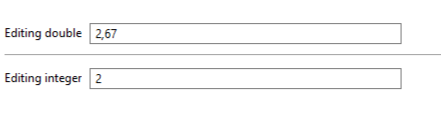
6.3.2. fillLine()
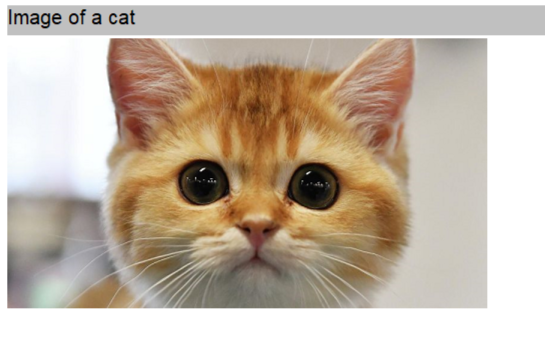
Like a separator, a fill line stretches across the entire width of the container. Its height, color, and text can be set.
Sections.customSectionBuilder(parent)
	.addLabel(LabelProperties.fillLine()
		.height(30)
		.background(Display.getDefault().getSystemColor(SWT.COLOR_GRAY))
		.text("Example fill line")
		.font(fillLineFont)).createSection();
6.4. addComposite()
Adds a Composite with any content to a custom section.
The Composite takes its place in the section row in the order of the calls and follows the same indent and alignment rules as the other elements of the section.
Sections
	.customSectionBuilder(parent)
	.addLabel(LabelProperties.label().text("Rows"))
	.addComposite() // adds an empty composite to the row
		.createInternalContent(c -> { // creates your controls in the composite (required)
			Button add = new Button(c, SWT.PUSH);
			add.setText("+");
			add.addListener(SWT.Selection, e -> new Label(c, SWT.NONE).setText("Row " + (c.getChildren().length - 1)));
		})
		.create()
	.createSection();

Sections
	.doubleEditor(() -> doubleValue)
	.parent(parent)
	.label("Editing double")
	.validationStrategy(ValidationStrategies.doubleAny())
	.handler(newValue -> doubleValue = newValue)
	.create();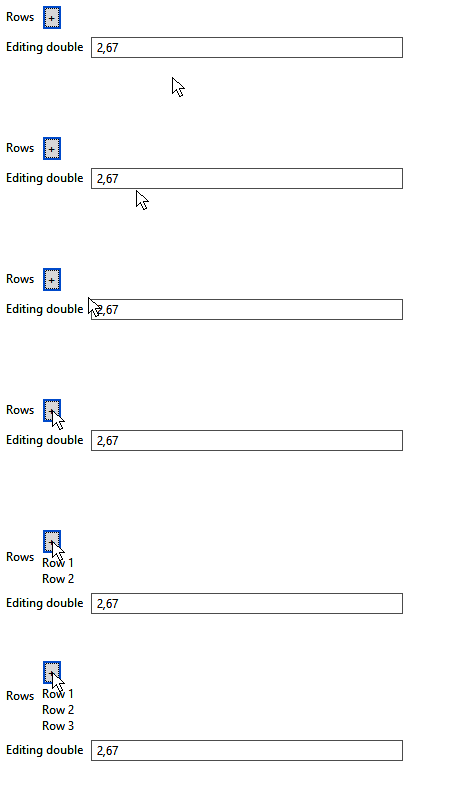
When the user changes the content of the Composite, the section resizes itself. If your code changes the content without a user action, call updateSection() on the section.
To refresh the controls from your code, add updater(). It runs every time updateSection() is called on the section. Use it to show new values in your controls or to hide the Composite with c.setVisible(false):
private Spinner spinner;

...

ICustomSection spinnerSection = Sections
	.customSectionBuilder(parent)
	.addLabel(LabelProperties.label().text("Spinner"))
	.addComposite()
		.createInternalContent(c -> spinner = new Spinner(c, SWT.BORDER))
		.updater(c -> spinner.setSelection(spinnerValue)) // refreshes the controls (optional)
		.create()
	.createSection();

spinnerValue = 10;
spinnerSection.updateSection(); // runs the updater

// the same from a button: the code changes the value and refreshes the section
Sections.customSectionBuilder(parent)
	.addButton(Buttons.separateButton()
		.text("Set the spinner to 20")
		.width(150) // the default width fits only a short text
		.handler(e -> {
			spinnerValue = 20;
			spinnerSection.updateSection();
		}))
	.createSection();
6.5. Further customization
Unlike addComposite(), which places the controls in one cell of the section row, getCompositeSection() returns the Composite of the whole section. Set its layout and add any SWT controls to it: the arrangement of the section is then fully up to you.
Composite customComposite = Sections.customSectionBuilder(parent).createSection().getCompositeSection();
GridLayout gridLayout = new GridLayout(1, false);
customComposite.setLayout(gridLayout);

ProgressBar progressBar = new ProgressBar(customComposite, SWT.SMOOTH);
progressBar.setSelection(50);

Slider slider = new Slider(customComposite, SWT.HORIZONTAL);
slider.setMinimum(0);
slider.setMaximum(100);
slider.setSelection(75);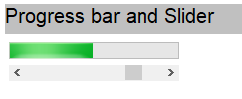
7. Common mistakes
| Symptom | Cause | Fix |
|---|---|---|
After the user types a value, the field shows the old one. |
The handler does not change the data that the supplier reads. |
Change that data in the handler, or make the supplier return the new value. |
The field shows an old value after your code changed the data. |
A section does not watch your data. |
Call |
An integer field rejects |
Integer strategies accept only whole numbers without spaces. |
Use a double editor or your own strategy. |
A small value such as 0.004 turns into 0.00. |
Double strategies without |
Use a strategy with |
|
The handler writes |
Override the action: |
The text field has no border. |
|
Add |
The button text is cut off. |
Buttons are narrow by default. |
Set |
A button works only in one of two sections. |
One button object was added to both sections. |
Create a button object for each section. |
|
These buttons send events through |
Pass the broker to the button: |
The layout of the parent |
|
Create the sections in a separate |
After a date is selected, the time is 00:00. |
|
Remove |
Labels of the sections are not aligned. |
The sections are created in a plain |
Create the sections in a |
A heading row widens the label column of a |
The group aligns all labels by the longest one. |
Call |
The text field is wider than the form. |
The default width of a text field is fixed. |
Set the width with |
The user types 50, and the handler receives 0.5. |
Percentage strategies store the value as a fraction. |
Store and process the value as a fraction. |
A new element of the list does not appear in the combobox. |
A plain |
Call |
An empty combobox shows an error icon. |
By default the value cannot be |
Call |
An error icon appears after a click on |
The editor does not allow |
Call |
An error icon appears after a click on a button that sets a value. |
The value set by the button does not pass the validation strategy. |
Set a value that passes the strategy, for example not 0 for |
The file dialog shows all files. |
|
Set the filter: |
A click on a button of a custom section does nothing. |
|
Add |
The section stays visible or enabled after the condition changes. |
A section does not track the condition passed to |
Call |
The new value does not appear after |
These methods refresh only the visibility or the enabled state. |
Call |
The value of a disabled text field can still be changed with a button. |
|
Use the |
The image of a custom section disappears. |
|
Omit |
The label text from a |
The group calculates the label width when the section is created. |
Set the width with |
The section keeps its old size after your code changed the content of |
The section resizes itself only after a user action. |
Call |
The controls in |
No |
Add |
The number of fonts in use grows each time the sections are created again. |
A |
Create the font once and dispose it together with the parent |