EMF editors
An EMF editor edits a feature, for example DatamodelPackage.Literals.TRUCK_EMF__CAPACITY, of an EObject stored in a WritableValue. The editor reads the value of the feature from the object in the container and writes the new value back to the same object. When another object is put into the container, all editors bound to it show the features of the new object. For plain Java objects, use container editors.
EMF editors require an SWT Composite, the parent widget that hosts the editor UI. The parent Composite is passed to the builder with the .parent(parent) method.
|
Add these bundles to Require-Bundle in the MANIFEST.MF of your plug-in:
com.amalgamasimulation.desktop.ui.editor
com.amalgamasimulation.desktop.binding
org.eclipse.core.databinding.observable
org.eclipse.swt
org.eclipse.emf.ecore
com.amalgamasimulation.emf
org.eclipse.emf.edit
org.eclipse.emf.databinding
The examples in this article edit TruckEMF objects from an EMF model. TruckEMF is a generated class with the attributes name, capacity, active and type and the reference driver to a DriverEMF. The Scenario object contains the TruckEMF and DriverEMF objects.
Scenario scenario = DatamodelFactory.eINSTANCE.createScenario();
// the root object of the model, it contains the trucks and the drivers

WritableValue<Scenario> scenarioValue = new WritableValue<>(scenario, Scenario.class);
// holds the scenario

IObservableList<TruckEMF> trucks = EMFProperties.list(DatamodelPackage.Literals.SCENARIO__TRUCKS).observeDetail(scenarioValue);
// the trucks of the scenario

IObservableList<DriverEMF> drivers = EMFProperties.list(DatamodelPackage.Literals.SCENARIO__DRIVERS).observeDetail(scenarioValue);
// the drivers of the scenario

WritableValue<TruckEMF> selectedTruck = new WritableValue<>();
// holds the object being edited
The examples below use these variables.
1. How an editor works
Each editor is a section: a row with a label, an input control, and optional buttons.
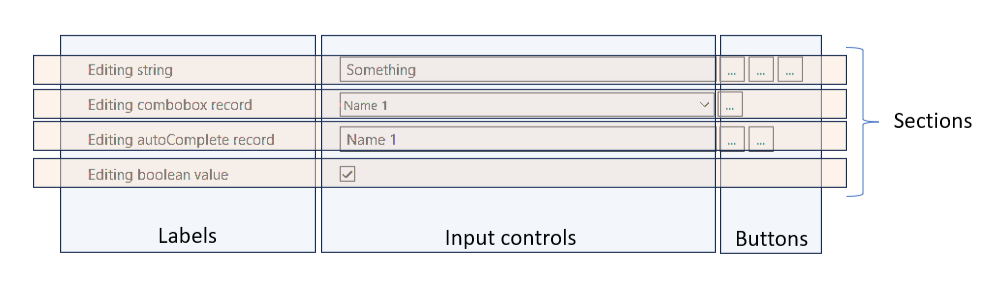
Apart from that, EMF editors work like container editors. They use the same container, validation strategies, buttons, and properties. This article describes only the differences.
To add an editor:
-
Call one of the factory methods of the
Sectionsclass:emfStringEditor(),emfIntegerEditor(),emfDoubleEditor(),emfComboBoxEditor()and others. Each method accepts aWritableValuethat holds theEObjectbeing edited and returns a builder. -
Configure the editor step by step with the returned builder: set the parent
Composite, the feature to edit withfeature(), the label, the validation strategy; optionally, add buttons and tooltips or set other properties. -
Call
.create()to build and display the editor.
The section handles the value as follows:
-
When the section is created, it reads the value of the feature from the object in the container and displays it.
-
When the user presses
Enteror the field loses focus, the editor validates the input. -
If the value is invalid, the editor shows an error icon, does not change the feature value in the object in the container, and restores the current value.
-
If the value is valid but unchanged, the object’s feature value is not changed either.
-
If the value is valid and different, it is written to the object with an EMF command, so the change can be undone.
1.1. Refreshing an editor
The editor observes its feature. The feature can change in three ways: through an EMF command, by undoing a command, or through a direct call such as truck.setCapacity(60). An EMF command is an object that changes the model and remembers the previous value. The section writes every value the user enters with such a command. Executed commands are kept in a command stack, and calling undo() on this stack reverts the last command. The Undo button in the example below does this. In all three cases the field shows the new value without any call from your code. When another object is put into the WritableValue, the section also recalculates the label, visibility and the enabled state. The functions passed to label(), visible() and enabled() are also recalculated when one of the features listed in observableFeatures() changes, including after an undo:
Sections
	.emfStringEditor(selectedTruck)
	.parent(parent)
	.feature(DatamodelPackage.Literals.TRUCK_EMF__NAME)
	.label("Name")
	.validationStrategy(ValidationStrategies.stringIsNotEmpty())
	.create();

Sections
	.emfCheckBoxEditor(selectedTruck)
	.parent(parent)
	.feature(DatamodelPackage.Literals.TRUCK_EMF__ACTIVE)
	.label("Active")
	.create();

Sections
	.emfDoubleEditor(selectedTruck)
	.parent(parent)
	.feature(DatamodelPackage.Literals.TRUCK_EMF__CAPACITY)
	.label(truck -> truck == null ? "Capacity" : "Capacity of " + truck.getName())
	.validationStrategy(ValidationStrategies.doublePositive())
	.enabled(truck -> truck != null && truck.isActive()) // the field is enabled for active trucks only
	.observableFeatures(DatamodelPackage.Literals.TRUCK_EMF__NAME, DatamodelPackage.Literals.TRUCK_EMF__ACTIVE) // features the functions read
	.create();

Button undo = new Button(parent, SWT.PUSH);
undo.setText("Undo");
undo.addListener(SWT.Selection, e -> CommandsManager.getEditingDomain().getCommandStack().undo());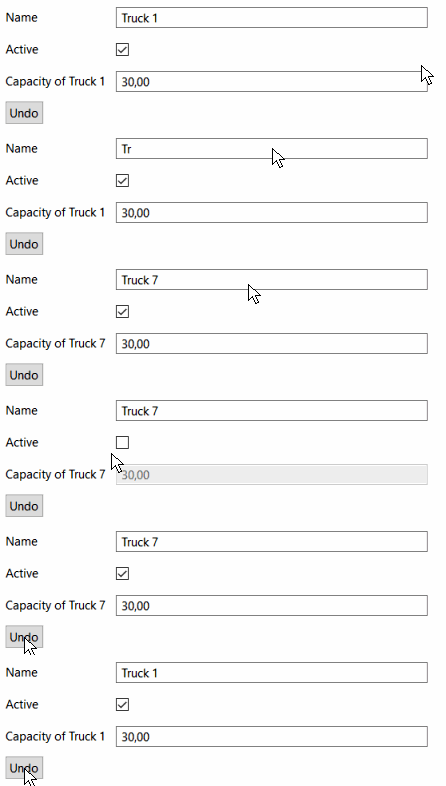
For a feature of a referenced object, pass a path to observableFeaturePaths():
Sections
	.emfStringEditor(selectedTruck)
	.parent(parent)
	.feature(DatamodelPackage.Literals.TRUCK_EMF__NAME)
	.label(truck -> truck == null || truck.getDriver() == null ? "Name" : "Name (driver " + truck.getDriver().getName() + ")")
	.validationStrategy(ValidationStrategies.stringIsNotEmpty())
	.observableFeaturePaths(FeaturePath.fromList(DatamodelPackage.Literals.TRUCK_EMF__DRIVER, DatamodelPackage.Literals.DRIVER_EMF__NAME))
	.create();
2. Switching the edited object
As with container editors, a form of EMF editors can edit different objects of the same type, one at a time. To switch, put another object into the container.
The form below edits the TruckEMF selected with the radio buttons, and the Undo button reverts the last change. The parent is any Composite with a GridLayout:
for (TruckEMF truck : trucks) {
	Button radio = new Button(parent, SWT.RADIO);
	radio.setText(truck.getName());
	radio.addListener(SWT.Selection, e -> {
		if (radio.getSelection()) {
			selectedTruck.setValue(truck); // editors show the selected truck
		}
	});
}

SectionGroup group = new SectionGroup(parent, SWT.NONE); // aligns the labels

Sections
	.emfStringEditor(selectedTruck)
	.parent(group)
	.feature(DatamodelPackage.Literals.TRUCK_EMF__NAME)
	.label("Name")
	.validationStrategy(ValidationStrategies.stringIsNotEmpty())
	.create();

Sections
	.emfDoubleEditor(selectedTruck)
	.parent(group)
	.feature(DatamodelPackage.Literals.TRUCK_EMF__CAPACITY)
	.label("Capacity")
	.validationStrategy(ValidationStrategies.doublePositive())
	.create();

Button undo = new Button(parent, SWT.PUSH);
undo.setText("Undo");
undo.addListener(SWT.Selection, e -> CommandsManager.getEditingDomain().getCommandStack().undo());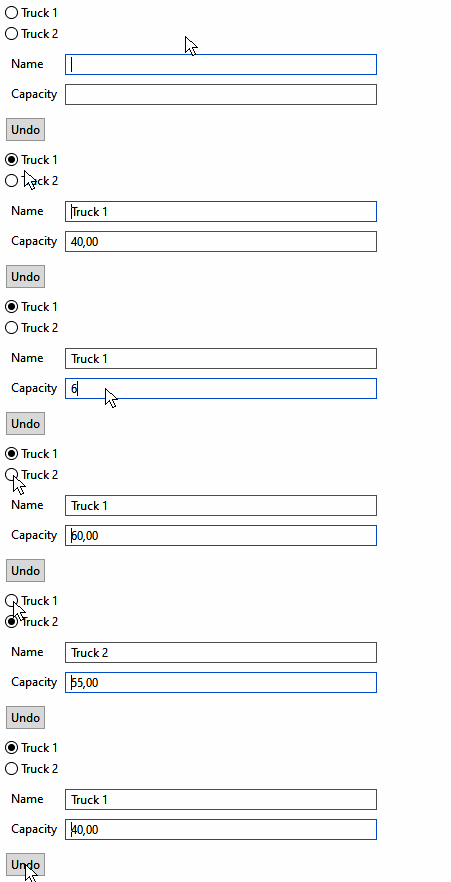
While the container holds null, for example before the user selects a TruckEMF, the editors show empty fields, and anything typed into them is not saved.
3. Editors
Each editor’s configuration chain starts with a factory method of the Sections class that accepts the WritableValue with the EObject being edited. The table lists the required steps and settings of each editor. The steps are the same as for container editors, except that feature() does the work of both valueExtractor() and handler(): the editor reads the value of the feature and writes the new value back to it. label(), visible() and enabled() also accept a function of the object in the container.
| Editor | Required steps | Input settings | Common settings |
|---|---|---|---|
|
|
||
|
|
||
|
|
||
|
|
||
|
|
||
|
|
The combobox, autocomplete and enum editors need both types in the call, for example Sections.<TruckEMF, DriverEMF>emfComboBoxEditor(selectedTruck).
Creating a double editor for the capacity of the selected TruckEMF:
Sections
	.emfDoubleEditor(selectedTruck) // the container with the object being edited
	.parent(parent)
	.feature(DatamodelPackage.Literals.TRUCK_EMF__CAPACITY) // the feature to read and write
	.label("Capacity")
	.validationStrategy(ValidationStrategies.doublePositive())
	.create();
The feature type must match the editor: emfDoubleEditor for EDouble, emfIntegerEditor for EInt, emfStringEditor for EString, emfCheckBoxEditor for EBoolean, and the combobox, autocomplete or enum editor for references and enums. A mismatch compiles, but throws a ClassCastException when an object is put into the container.
|
feature() does the same job as the valueExtractor() and handler() pair of container editors. If the value has to be written in another way, add handler((truck, value) → …) after validationStrategy(). This handler overrides the default one.
Each editor below has the same settings as its container and standalone versions.
3.1. Text-based editors
3.1.1. Double editor
Sections.emfDoubleEditor(WritableValue<T>) edits a double feature. The call chain is shown in the example above. Validation strategies are listed in the validation strategies table of the standalone editors article. Other settings are described in the standalone double editor.
3.1.2. Integer editor
Sections.emfIntegerEditor(WritableValue<T>) edits an int feature. Validation strategies are listed in the validation strategies table of the standalone editors article. Other settings are described in the standalone integer editor.
3.1.3. String editor
Sections.emfStringEditor(WritableValue<T>) edits a String feature. Validation strategies are listed in the validation strategies table of the standalone editors article. Other settings are described in the standalone string editor.
3.2. ComboBox editor
Sections.emfComboBoxEditor(WritableValue<T>) selects the feature value from a list, for example a reference to another object. Java cannot infer the element type from the container, so pass both types explicitly. format() can take the feature of the list element to display:
Sections
	.<TruckEMF, DriverEMF>emfComboBoxEditor(selectedTruck) // the object type and the element type
	.parent(parent)
	.feature(DatamodelPackage.Literals.TRUCK_EMF__DRIVER)
	.label("Driver")
	.elements(drivers)
	.format(DatamodelPackage.Literals.DRIVER_EMF__NAME) // the element feature to display
	.create();
drivers is an IObservableList, so the combobox follows drivers added to or removed from the list. format((truck, driver) → …) works as in the container combobox. Filtering, sorting, and canBeNull() are described in the standalone combobox editor and its settings.
3.3. Autocomplete editor
Sections.emfAutoCompleteEditor(WritableValue<T>) is set up like the combobox editor: explicit types, elements(List), and format() with a feature or a function. The rest is described in the standalone autocomplete editor.
3.4. Enum editor
Sections.emfEnumEditor(WritableValue<T>) also needs explicit types. It takes an array in elements(), for example TruckType.values(), and a format() function of the object and the element. format() with a feature is not available here. See the standalone enum editor.
3.5. CheckBox editor
Sections.emfCheckBoxEditor(WritableValue<T>) edits a boolean feature with a checkbox. It has no validation strategy. See the standalone checkbox editor.
3.6. LocalDateTime editor
Sections.emfLocalDateTimeEditor(WritableValue<T>) edits a LocalDateTime feature. date(), newLocalDateTime(), withoutDefaultButton(), and canBeNull() work as in the standalone LocalDateTime editor.
3.7. LocalTime editor
Sections.emfLocalTimeEditor(WritableValue<T>) edits a LocalTime feature. newLocalTime(), withoutDefaultButton(), and canBeNull() work as in the standalone LocalTime editor.
3.8. Color editor
Sections.emfColorEditor(WritableValue<T>) edits a color feature. withoutDefaultButton() and canBeNull() work as in the standalone color editor.
3.9. Real distribution editor
Sections.emfRealDistributionEditor(WritableValue<T>) edits a RealDistribution feature. leftBorder(), rightBorder(), withoutDefaultButton(), and canBeNull() work as in the standalone real distribution editor.
3.10. Time Series editor
Sections.emfTimeSeriesEditor(WritableValue<T>) edits a TimeSeries feature. newLocalDateTime(), withoutDefaultButton(), and canBeNull() work as in the standalone time series editor.
4. Fine-tuning
label(), enabled() and visible() accept a function of the object in the container, see Refreshing an editor.
If the function reads other features, list them in observableFeatures(). Otherwise, the section does not recalculate label, visibility, or enabled state when those features change.
|
While the container is empty, the functions receive null.
toolTip(), labelProperties(), textProperties(), comboBoxProperties(), and addButton() work as described in the Fine-tuning chapter of the standalone editors article.
5. Buttons
Besides the buttons described in the standalone editors and container editors articles, two new button types are described below.
5.1. Button with your own action
Buttons.emfButton() creates a button with your own action, like Buttons.simpleButton() in standalone editors and Buttons.containerButton() in container editors, but its action receives the object in the container and the feature of the editor. The action() method accepts the SWT event, the object in the container, and the feature:
Sections
	.emfDoubleEditor(selectedTruck)
	.parent(parent)
	.feature(DatamodelPackage.Literals.TRUCK_EMF__CAPACITY)
	.label("Capacity")
	.validationStrategy(ValidationStrategies.doublePositive())
	.addButton(Buttons.<TruckEMF, Double>emfButton() // the action gets the object and the feature
		.action((event, truck, feature) -> {
			MessageBox messageBox = new MessageBox(parent.getShell(), SWT.ICON_INFORMATION);
			messageBox.setMessage(feature.getName() + " of " + truck.getName() + " = " + truck.eGet(feature));
			messageBox.open();
		}))
	.create();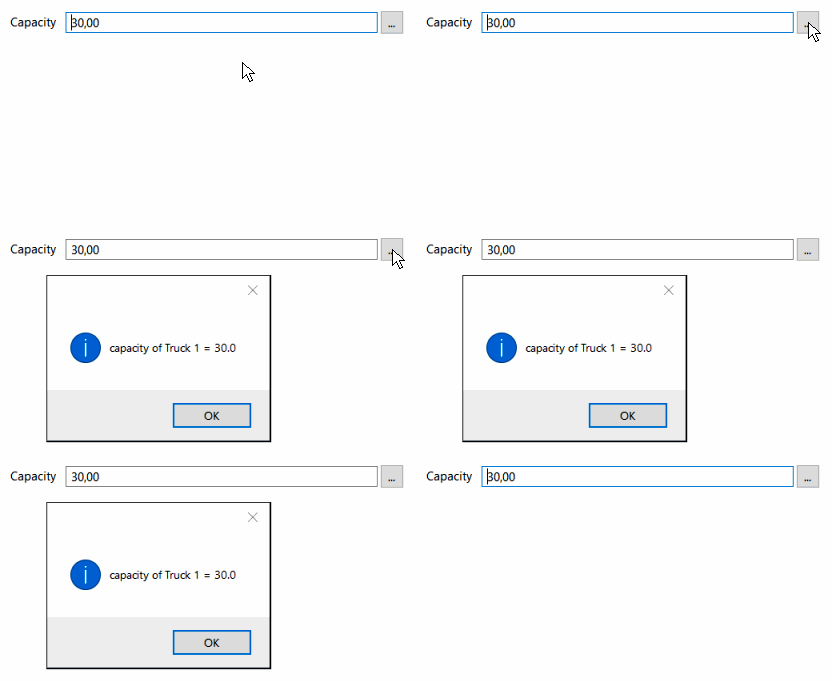
5.2. Element selection button
Buttons.selectEmfElementFromTable() creates a button that opens a dialog with a table of elements. The element the user selects becomes the new value of the feature. The value is written with a command, the same way as a value chosen in the editor:
Sections
	.<TruckEMF, DriverEMF>emfComboBoxEditor(selectedTruck)
	.parent(parent)
	.feature(DatamodelPackage.Literals.TRUCK_EMF__DRIVER)
	.label("Driver")
	.elements(drivers)
	.format(DatamodelPackage.Literals.DRIVER_EMF__NAME)
	.addButton(Buttons.<TruckEMF, DriverEMF>selectEmfElementFromTable()
		.title("driver") // shown in the dialog title
		.values(() -> drivers) // elements in the table
		.columns(table -> table.column(DriverEMF::getName).name("Name").width(200))) // table columns
	.create();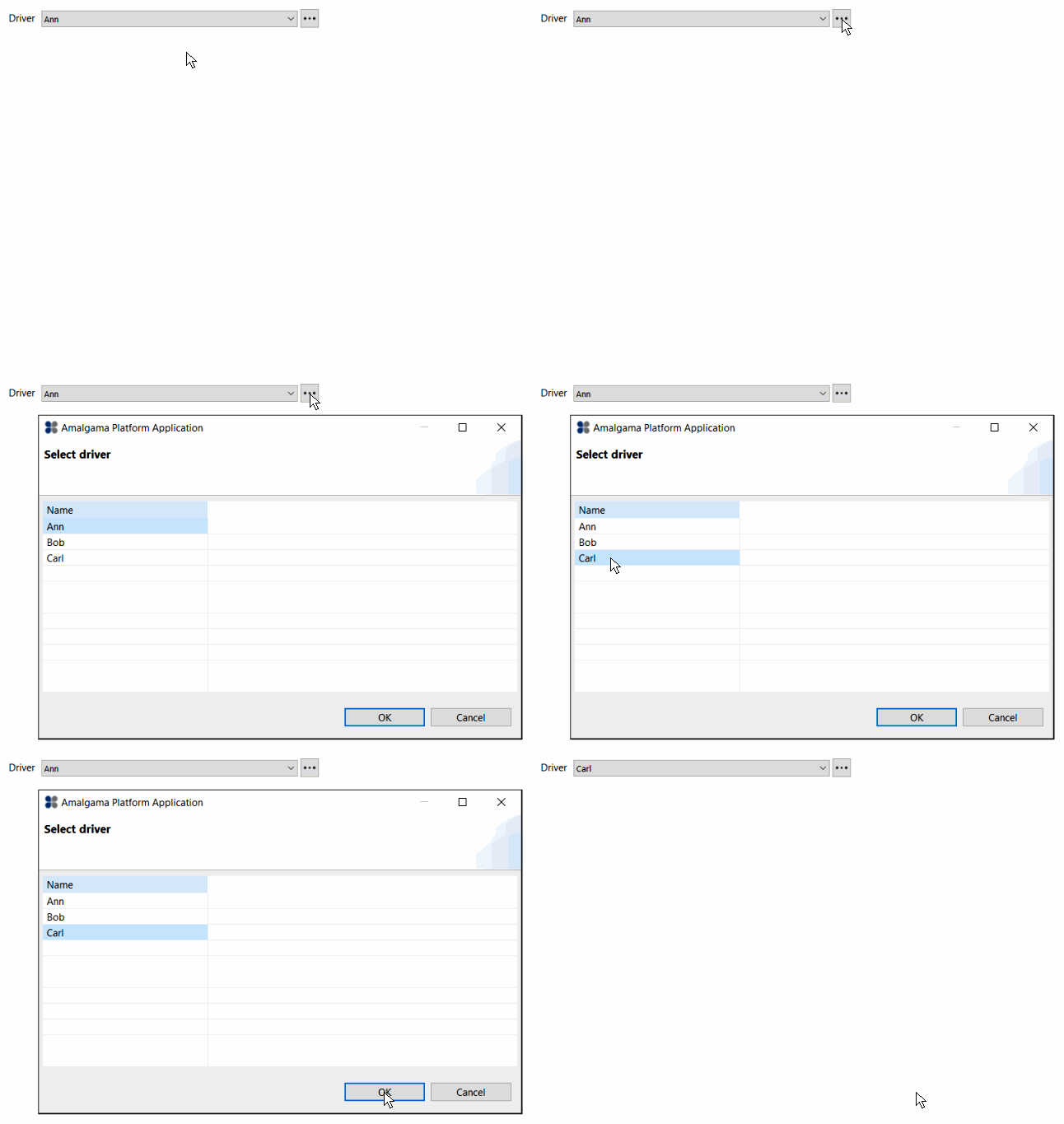
filter() and comparator() limit and sort the elements in the table. customAction((feature, truck, driver) → …) replaces writing the value when the user selects an element. The other button settings are described in the standalone editors article.
For a feature that holds a list, use Buttons.selectElementsFromTable(). The user selects several elements in the dialog, and the list is updated in a single command, so it can be undone in one step. title(), columns(), and values() work as in selectEmfElementFromTable().
6. Common mistakes
EMF editors share settings and buttons with container and standalone editors, so also check the common mistakes of standalone editors and container editors. The table below lists the mistakes specific to EMF editors.
| Symptom | Cause | Fix |
|---|---|---|
The fields are empty, and typed values are not saved. |
The container holds |
Put an |
|
The feature type does not match the editor, for example an |
Use the editor that matches the feature type, see Editors. |
Undo does not revert a change made in the editor. |
The handler writes the value without a command, for example with |
Execute a command in the handler, for example |
The label text is not updated when one of the object’s features changes. |
The function passed to |
List the feature: |
The label text is not updated after a feature of a referenced object changes, for example, the name of the driver. |
|
Pass a path to |
Compilation error |
Java cannot infer the element type of the combobox, autocomplete or enum editor from the container. |
Pass both types: |
The feature does not change after the user selects an element in the dialog of |
The button has |
Write the element in |
The dialog of |
The button has no |
Pass the elements: |